Assets
The Data Portfolio integrates metadata and descriptions of discovered data assets into a structured, hierarchical map of data sources.
Assets
In the Assets list, all data sources, catalogs, schemas and tables are comprehensively displayed.
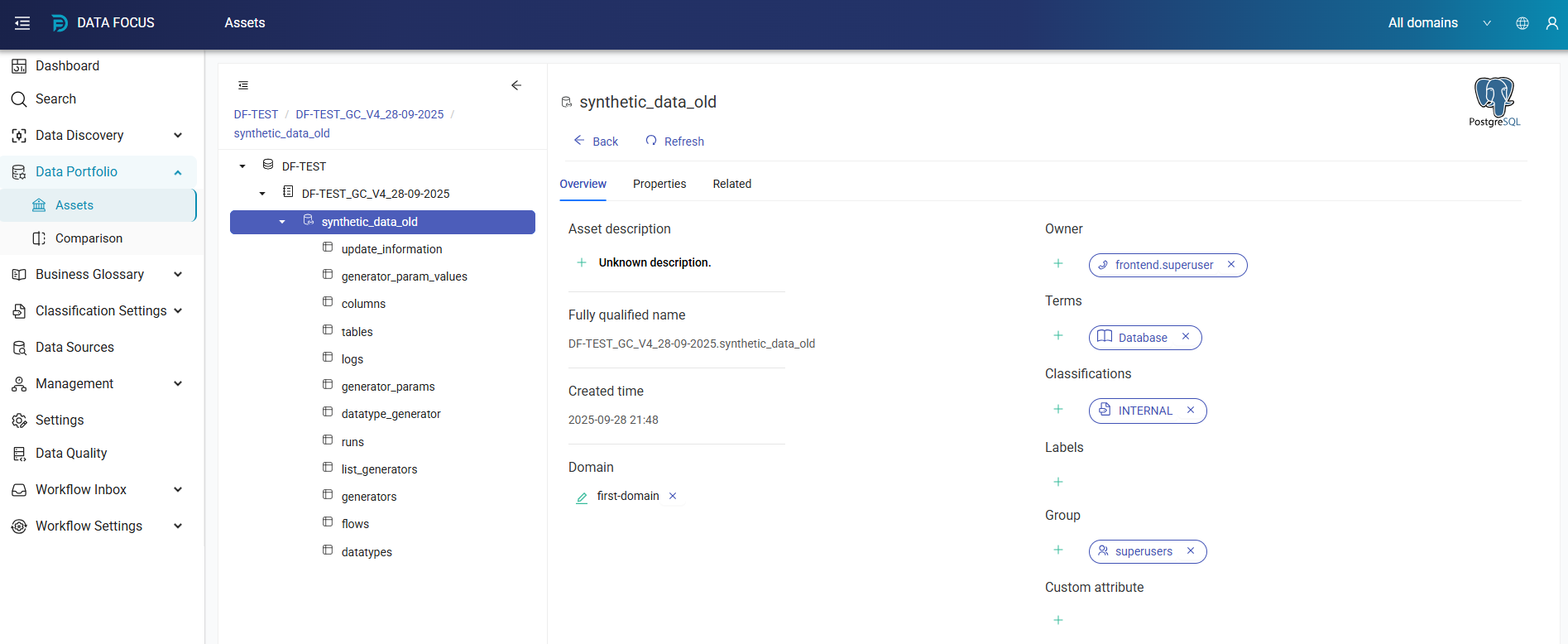
- By clicking on the arrow to the left of any data source, users can access the catalogs it contains.
- By clicking on the arrow to the left of any catalog, users can access the schemas it contains.
- By clicking on the arrow to the left of any schema, users can access the tables it contains.
Data Sources
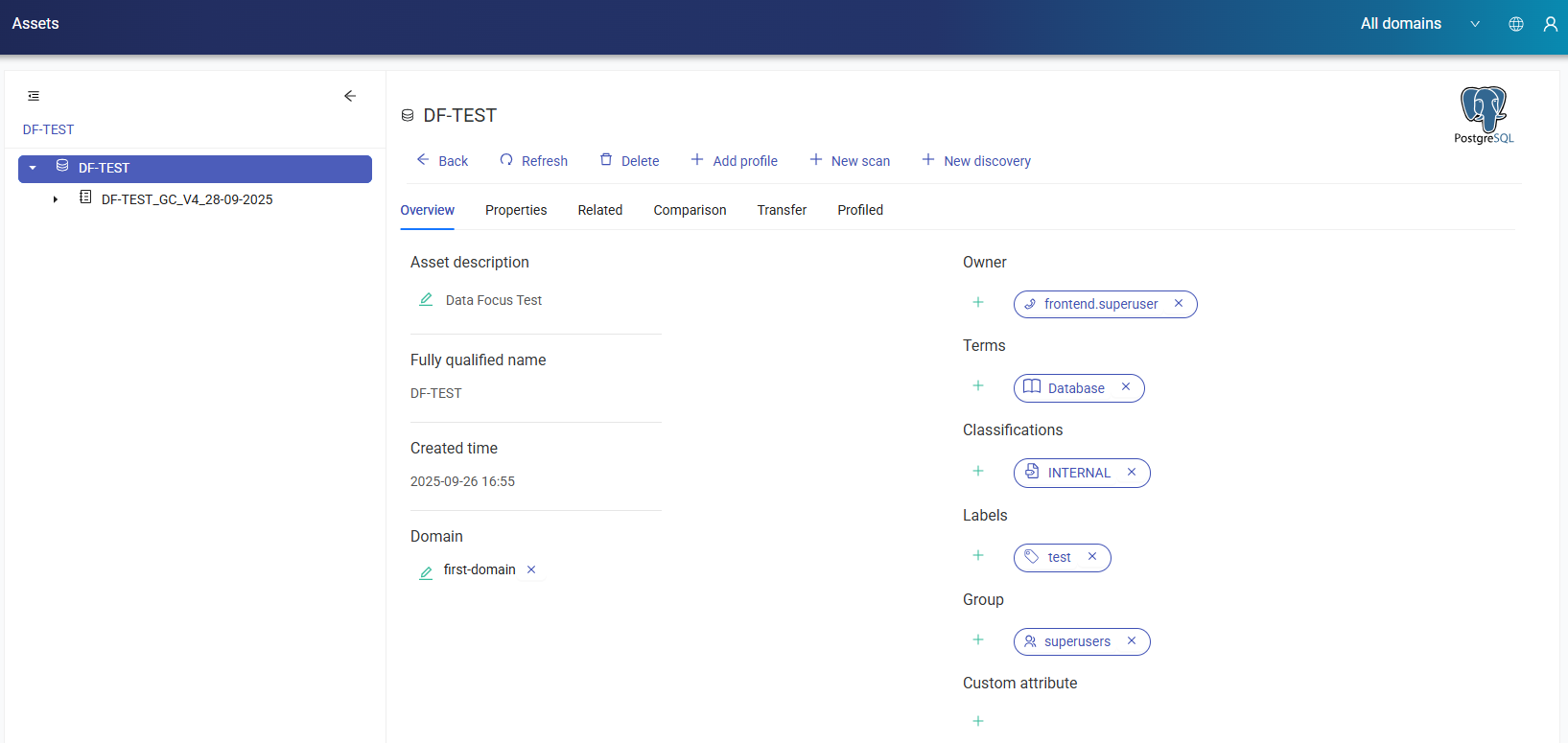
 icon indicates Data Source. Data Source details include Overview, Properties, Related, Comparison and Transfer tabs.
- Refresh: It is used to refresh the field.
- Delete: It is used to delete the selected asset.
- New Scan: Refer to New Scan section for the steps to create a new scan.
- New Discovery: Refer to New Discovery section for the steps to create a new discovery.
Overview Tab
It shows the general information about the data source as Description, Fully Qualified Name, Created Time, Domain, Owner, Terms, Classifications, Labels, Group, and Custom Attribute.
Properties Tab
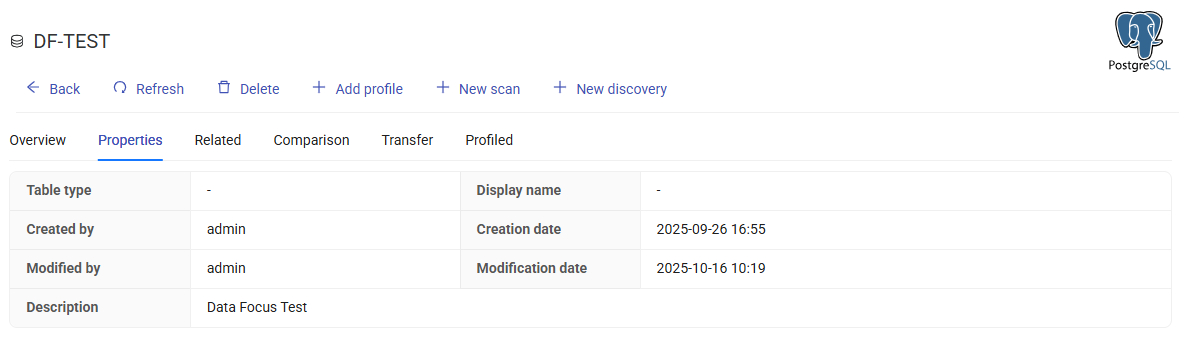
It shows the property and its value.
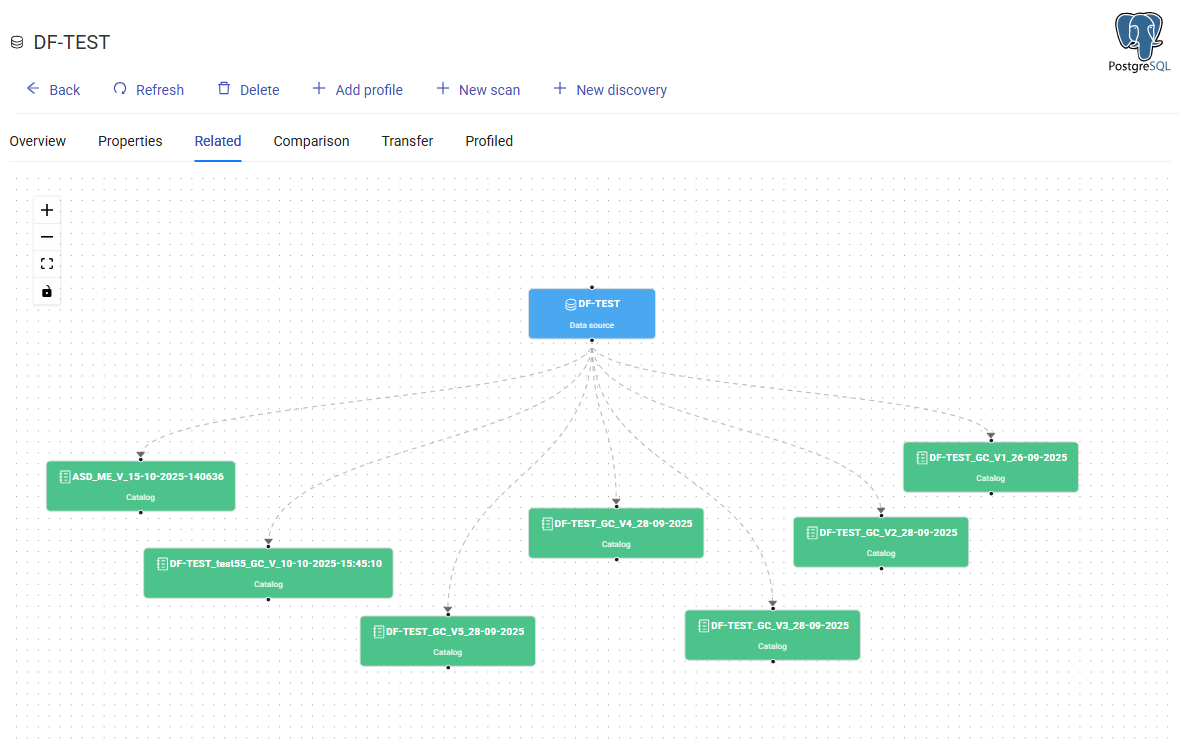
Related Tab
It shows the related catalogs, schemas and tables.
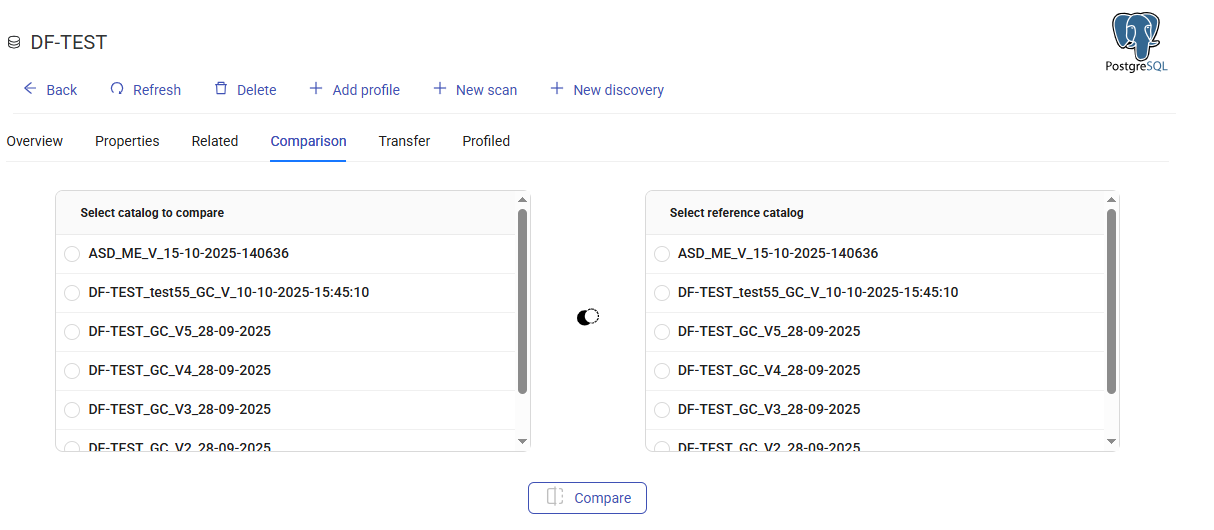
Comparison Tab
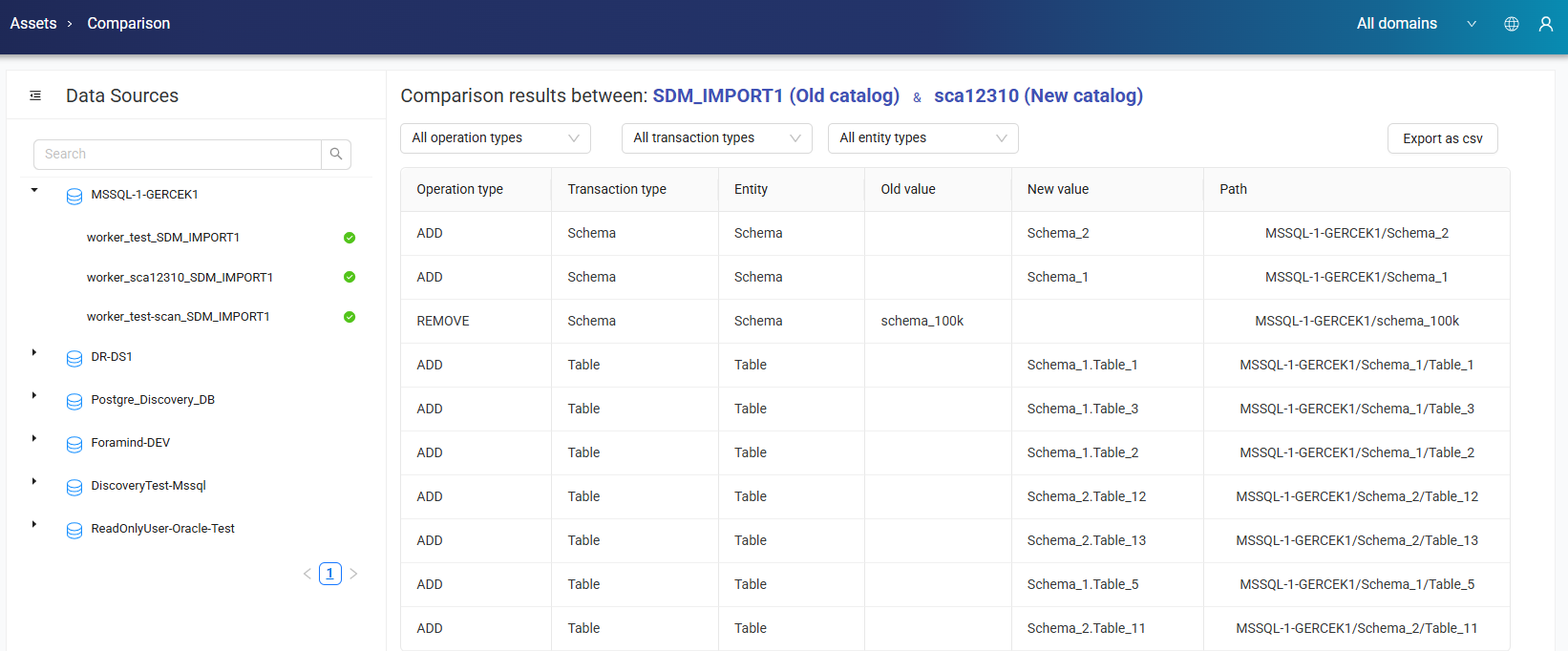
It is used for comparisons. Select the catalog to compare and the reference catalog, then click the Compare button.
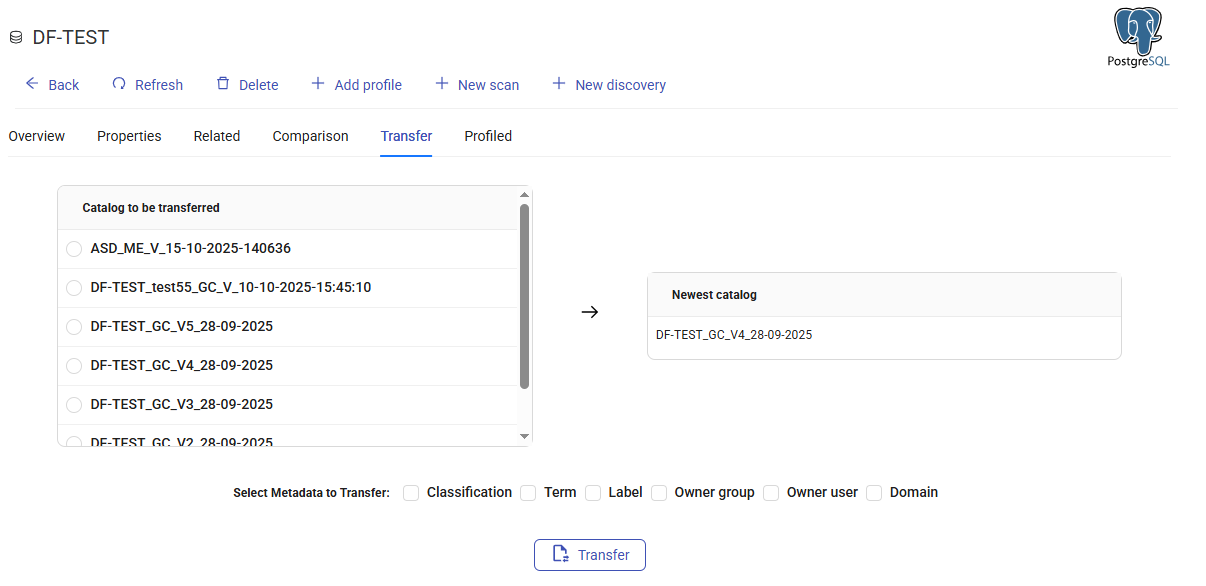
Transfer Tab
It is used to transfer a catalog. Select the catalog to transfer and the relevant metadata, then click the Transfer button.
Catalog
 icon indicates Catalogs. Catalog details include Overview, Properties and Related tabs.
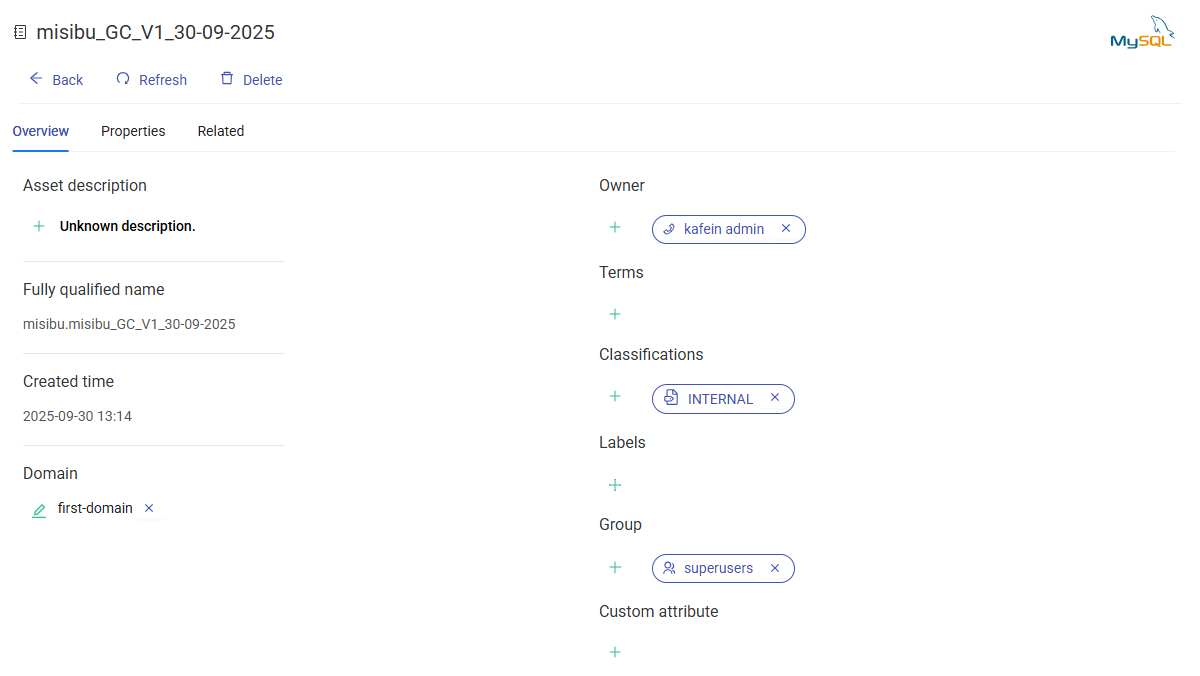
Overview Tab
It shows the general information about the catalog as Description, Fully Qualified Name, Created Time, Owner, Terms, Classifications, Labels, Group, and Custom Attribute.
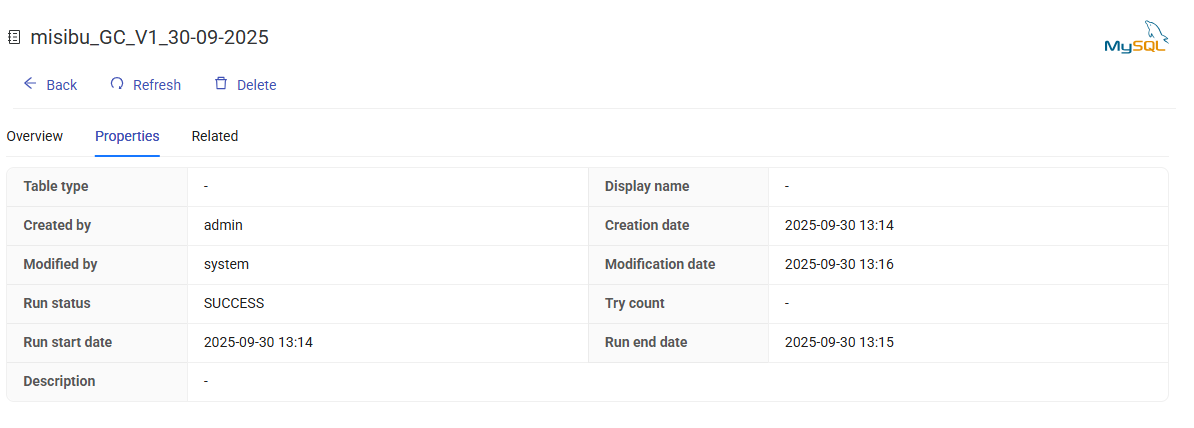
Properties Tab
It shows the property and its value.
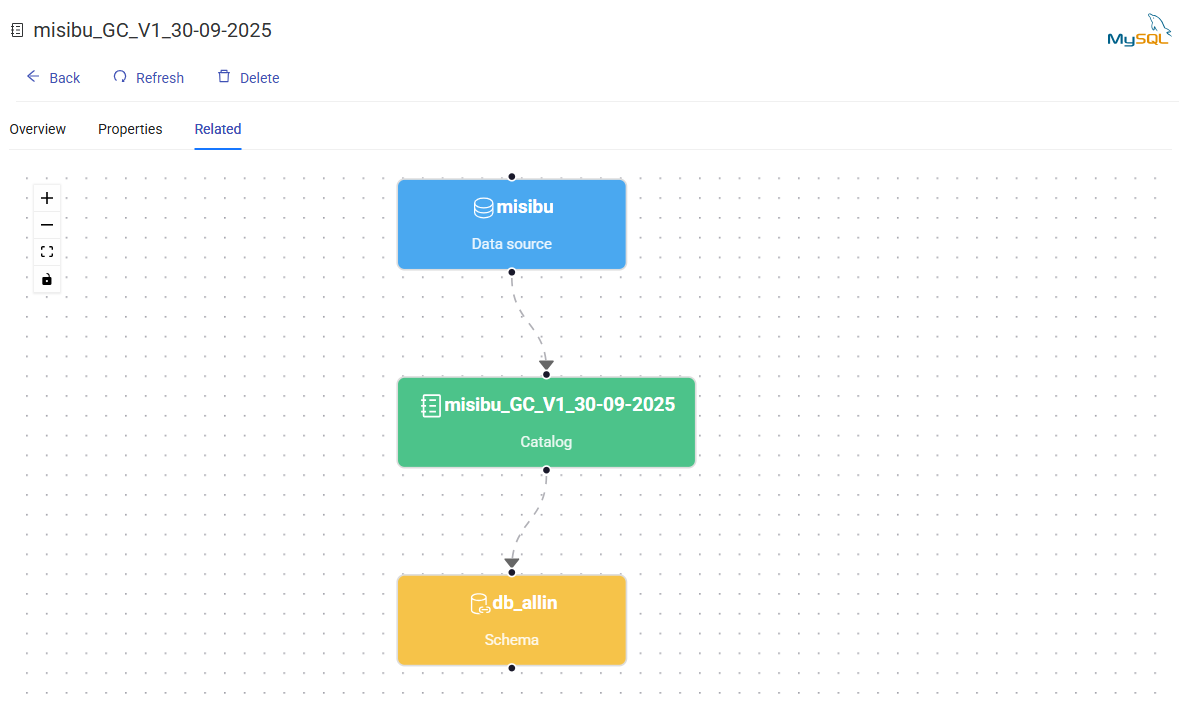
Related Tab
It shows the related data sources, schemas and tables.
Schema
 icon indicates Schemas. Schema details include Overview, Properties and Related tabs.
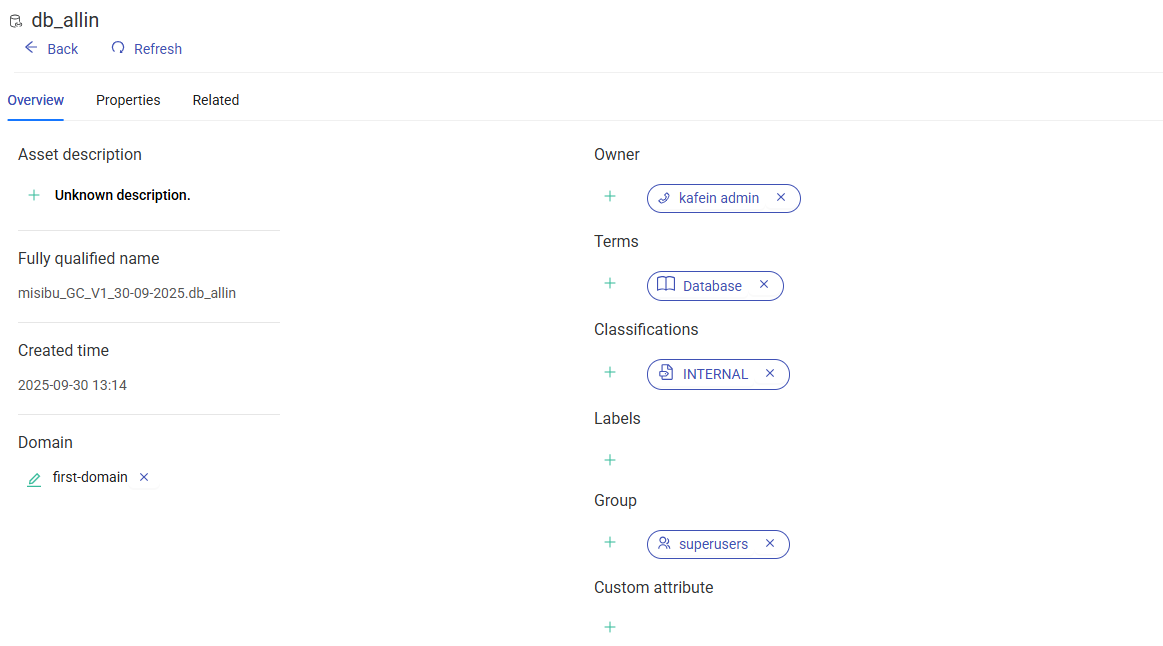
Overview Tab
It shows the general information about the schema as Description, Fully Qualified Name, Created Time, Owner, Terms, Classifications, Labels, Group, and Custom Attribute.
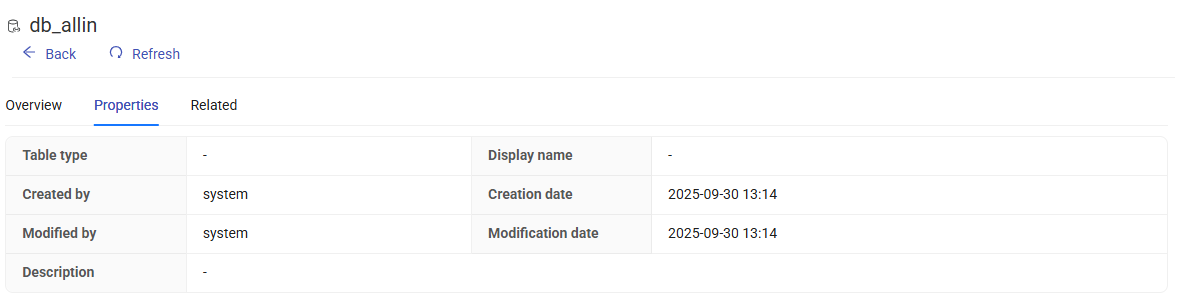
Properties Tab
It shows the property and its value.
Related Tab
It shows the related data sources, catalogs and tables.

Table
 icon indicates Tables. Table details include Overview, Properties, Columns and Related tabs.
- Refresh: It is used to refresh the field.
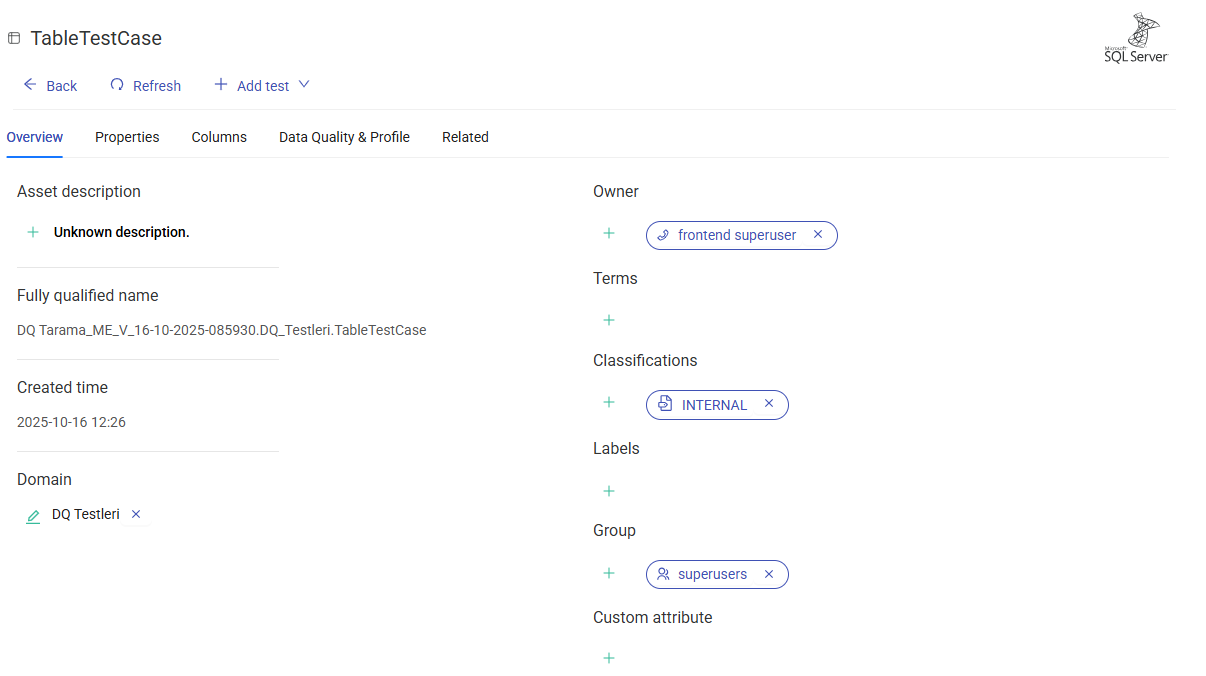
Overview Tab
It shows the general information about the table as Description, Fully Qualified Name, Created Time, Owner, Terms, Classifications, Labels, Group, and Custom Attribute.
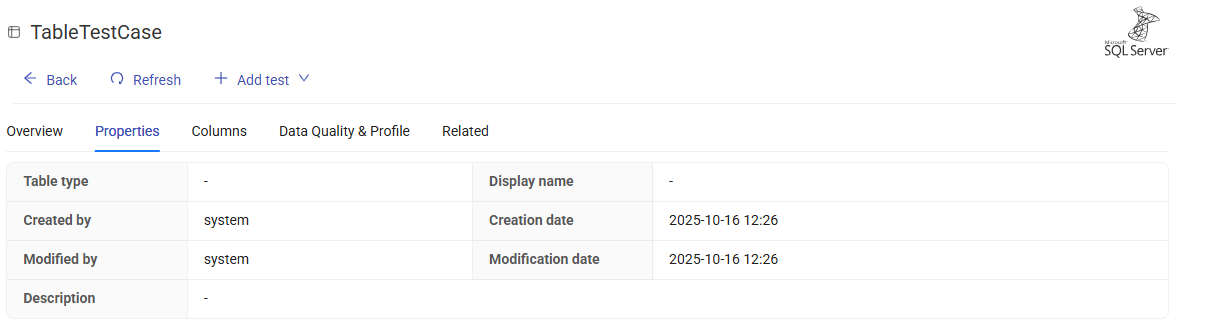
Properties Tab
It shows the property and its value.
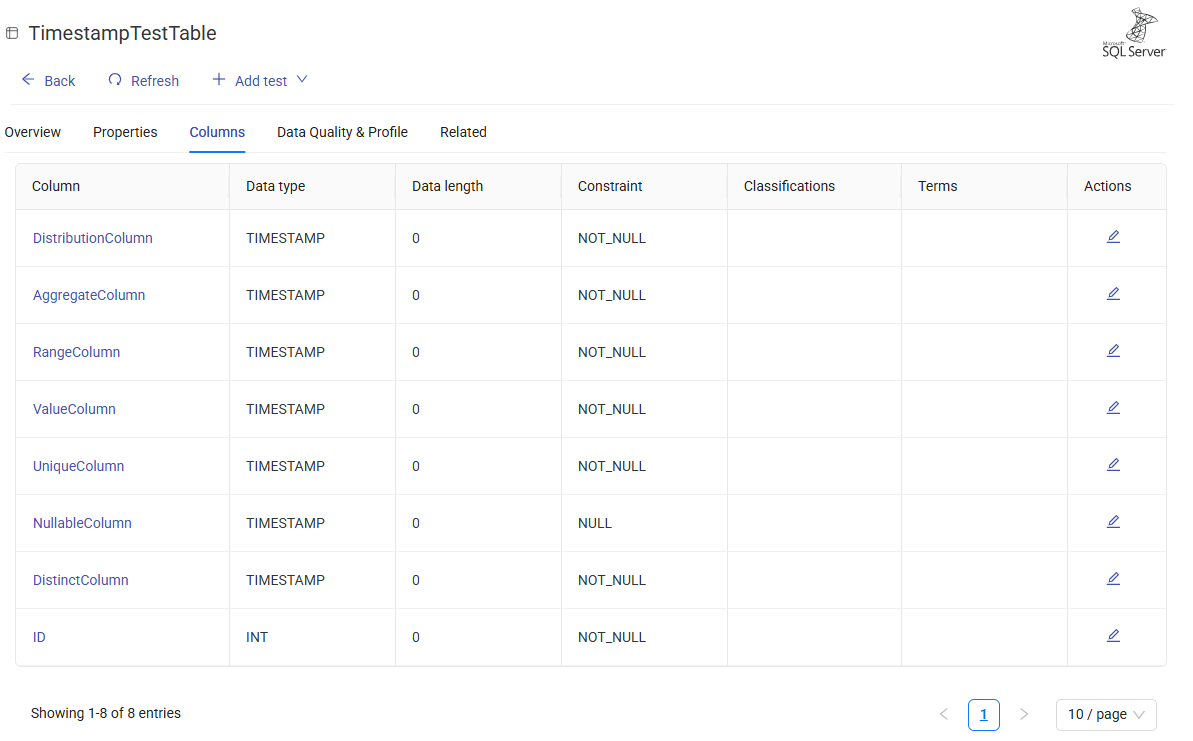
Columns Tab
It shows the related columns with their data type, data length, constraint, classifications and terms.
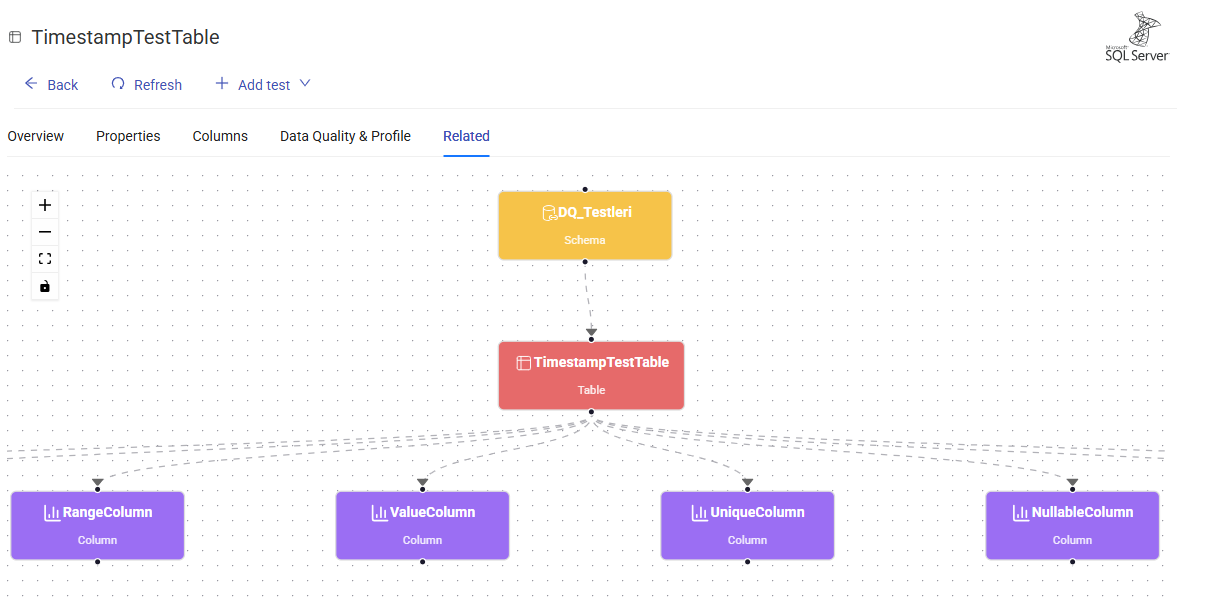
Related Tab
It shows the related data sources, catalogs and tables.
Comparison
Reached via Structured Data > Comparison in the sidebar, this section provides information on changes between catalogs selected under the same data source. The reports include changes in columns, tables, and schemas, as well as additions and deletions, ownership updates, label modifications, classification changes, and more.
- Results can be exported as a CSV file using the Export as CSV button.