Settings
Global Discovery Settings
The values and parameters defined in this area are used as the default configuration settings for all discovery operations.

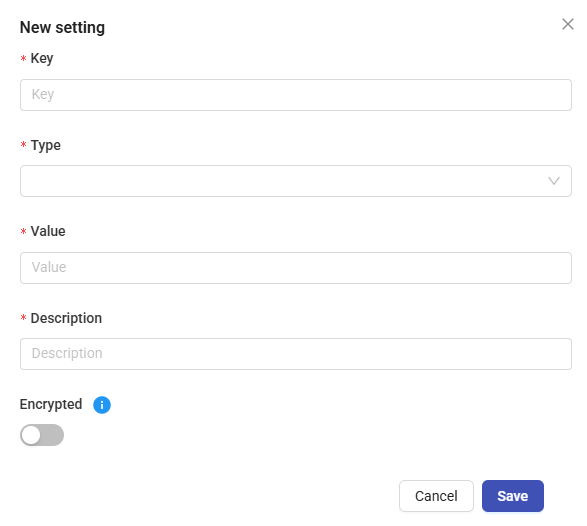
New Setting
To create a new setting, click the + Add New Setting button.
1. Fill in the Key, Type, Value, and Description fields.
2. If needed, enable the Encrypted option. When this option is enabled, the entered value is automatically encrypted, securely stored in the system, and not visible while editing.
3. Click Save.
System Parameters
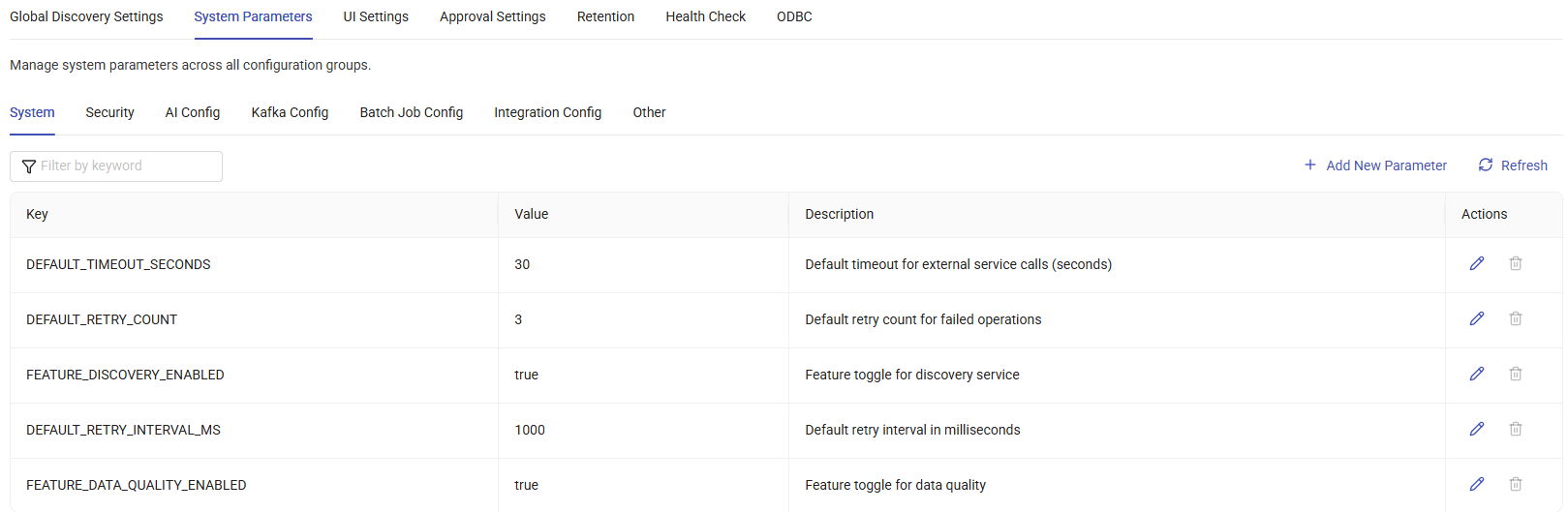
The System Parameters page provides a centralized configuration area for managing system-level settings. It includes parameters related to System, Security, AI, Kafka, Batch Job, Integration, and other configurable categories.
This page allows users to view existing parameters, update their values, and add new parameters as needed. Changes made in this section directly affect system behavior and operational configurations.
UI Settings
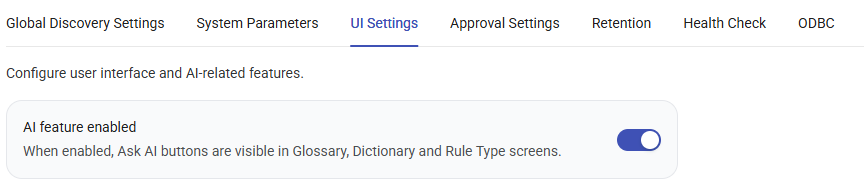
The UI Settings page allows you to configure user interface preferences and AI-related features.
When AI Feature Enabled option is enabled, Ask AI functionality becomes available throughout the application. The Ask AI buttons are displayed on the Glossary, Dictionary, and Rule Type pages, allowing users to generate and manage content using AI-assisted capabilities.
Approval Settings
This page displays all approval settings, allowing you to manage their active or passive status directly.

Retention
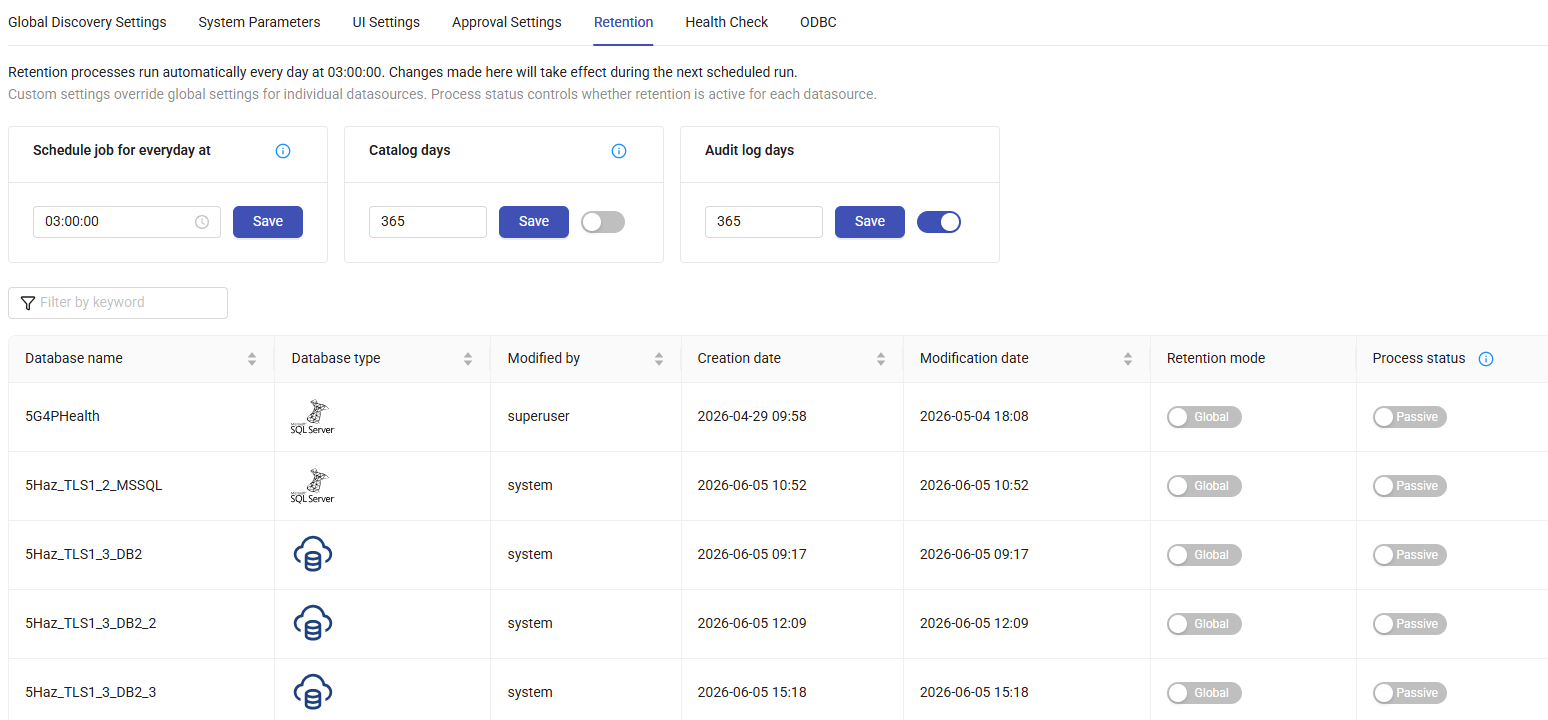
The Retention Settings page allows you to configure data retention policies for the system and individual data sources.
-
Retention processes run automatically every day at 03:00:00. Any changes made to retention settings take effect during the next scheduled execution.
-
Global retention settings can be configured for all data sources, while Custom Settings allow you to define datasource-specific retention policies. When custom settings are configured, they override the global retention settings for the selected datasource.
-
The Process Status setting determines whether the retention process is enabled or disabled for each datasource.
Health Check
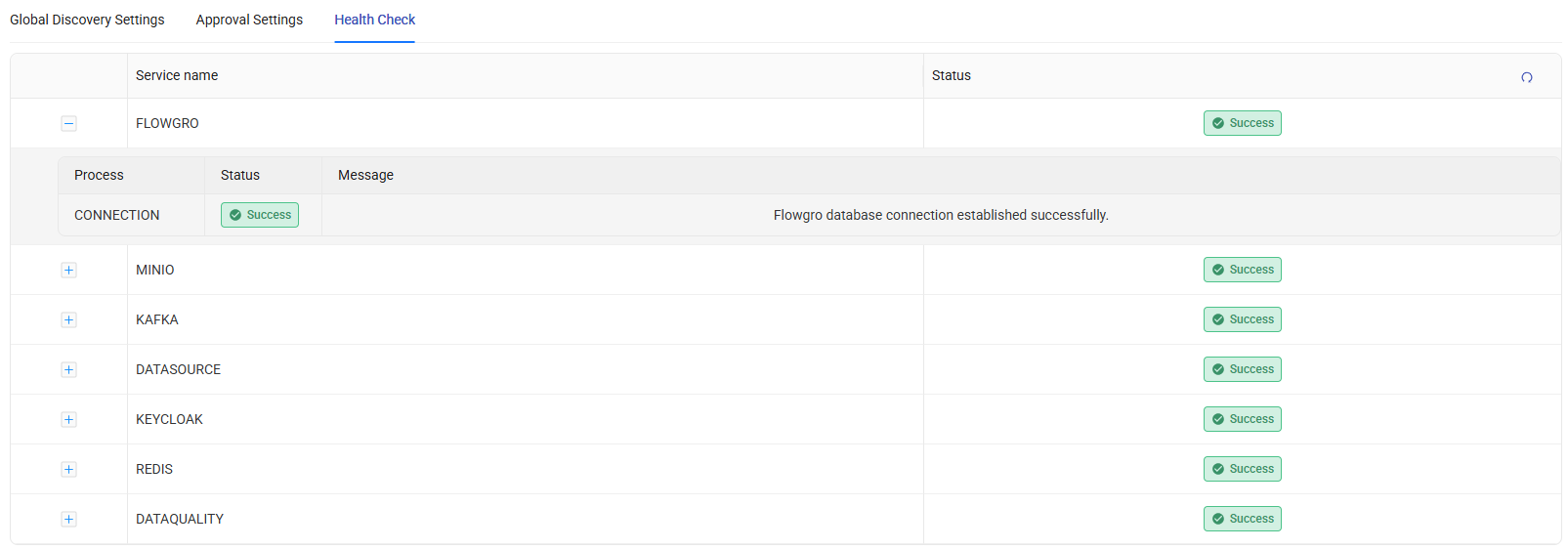
The Health Check page displays the existing services along with their current statuses.
ODBC
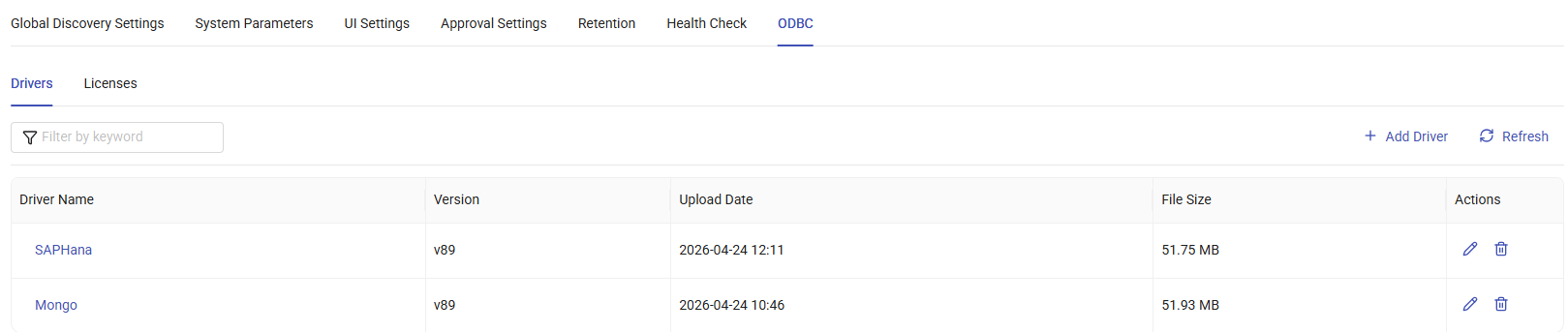
The ODBC page provides a centralized view of installed ODBC drivers and licenses. It allows administrators to review available entries, update existing configurations, and remove drivers or licenses that are no longer required.
Use this page to manage ODBC-related components and ensure that the necessary drivers and licenses are properly configured for database connectivity.
Unstructured Health Check
The Unstructured Health Check tab displays the status of services related to Unstructured Data Discovery, similar to the general Health Check page.
Runtime Limits
The Runtime Limits tab manages the worker and concurrency settings used by Unstructured Data Discovery scans at runtime. See Runtime Limits in the Unstructured Data Discovery guide for details.