Integration
Data Focus can integrate with some applications. The Integrations menu is where these integrations are managed and contains the Integration, Events and Templates tabs.
- Integro: notifies users about operations performed in the system, in the desired format and through the desired channel (e.g. Slack, e-mail). Related events are created from the Integration page; an event and its associated templates must be created before an integration can be set up.
Integration Tab
It is used for adding and managing integrations.
-
Add Integration field shows the available integrations for adding.
-
My Integrations field lists the added integrations. The integration status can be adjusted using the Active/Passive toggle.
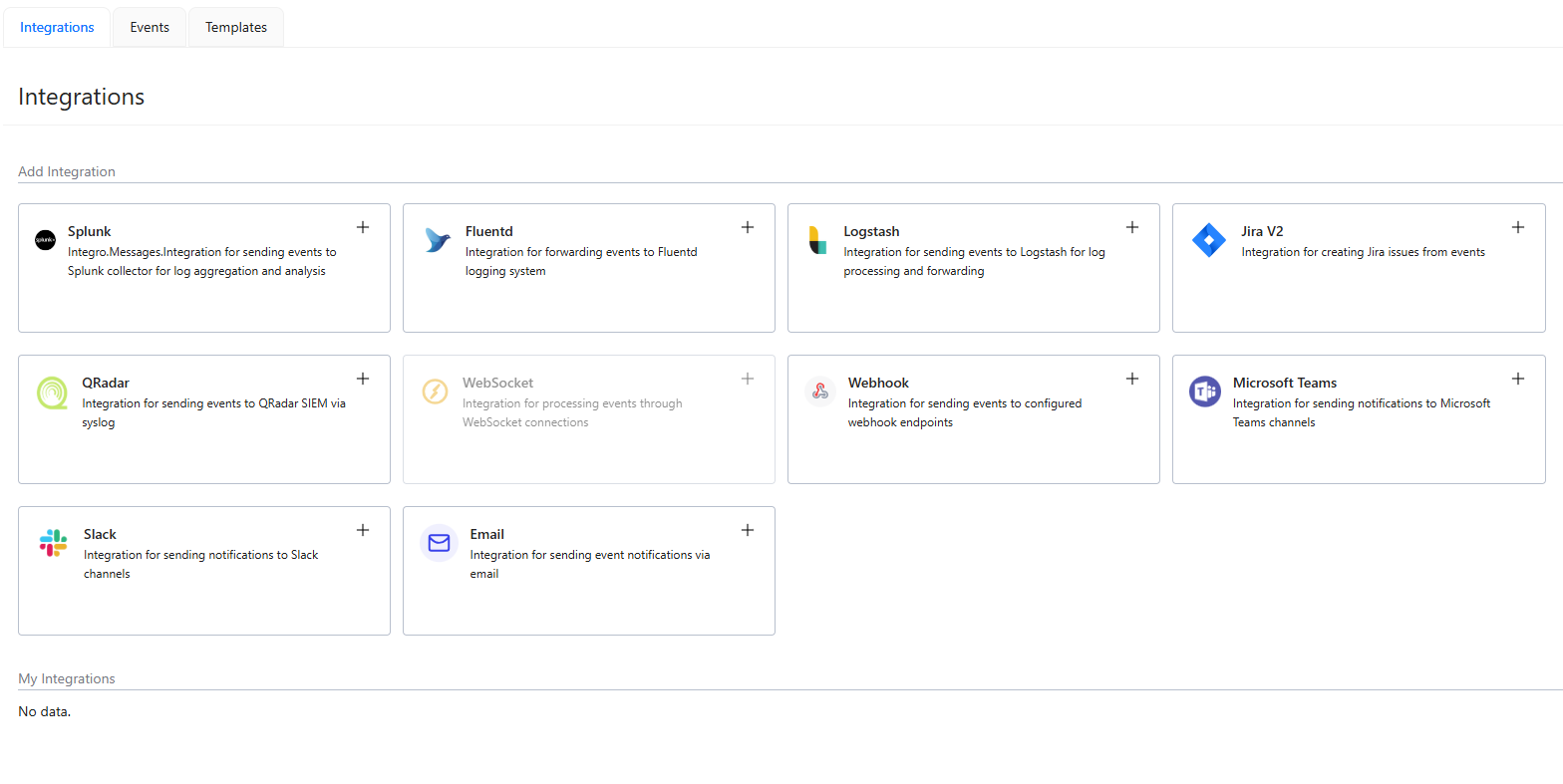
To add an integration, click the + button at the top right of the relevant integration. After filling in the required fields, the connection can be tested with the Test Connection button. Then, click the + Add Integration button.
Events Tab
Events are the core components of the integration module. Each event is linked to a specific action, which defines the integration process. For example, a Spectrum Reports event can be configured to trigger an E-Mail action upon execution.
The Events tab allows users to create new events and manage existing ones.
With the Children List button, child events of the event are displayed. By clicking the + button next to the Children List button, a new child event can be added.
New Event
To add a new event, click the + Add button in the top right corner. Fill in the Event Key, Event Name, and Description fields in the pop-up window, then click + Add Event.
Templates Tab
Templates are the message bodies tied to the desired integrations. Any triggered event will be binded with the corresponding template and then delivered with the desired integration. For example, when a Spectrum Reports event is triggered, the event is added into the specified e-mail template, including the desired message body and the information regarding the event (and even the report as an attachment) and then sent via the e-mail system.
There are two ways to create a new template: by cloning an existing template or by creating a new one from scratch.
-
To clone a template, click the Clone button in the Actions section of the existing template. The pop-up window will display the template's properties, which can be modified or left unchanged. Then, click the + Add Template button.
-
To create a template from scratch, click the + Add button in the top right. Fill in the Template Name, Integration Type, Event Type, and Templates fields, then click the + Add Template button.